Last Updated: May 2023
If you have a database of Accounts and Contacts from other programs, you can import these into C2CPRO. C2CPRO provides a template spreadsheet so that you can add your existing details to this spreadsheet, and then you can import into C2CPRO.
Step 1 Access Accounts, select Import.

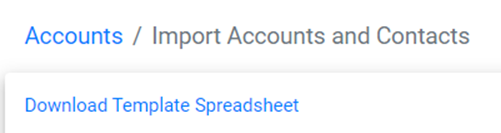
Step 2 Select Download Template Spreadsheet to access the template.
Step 3 Open the spreadsheet. You will note that there are two tabs, one for Accounts and the other for Contacts. The Contacts are the people to contact who are associated with the Account.
You will paste the details of the Accounts into the spreadsheet from your spreadsheet, ensuring the correct details are in the appropriate columns. The most important columns to focus on are highlighted below:. The remaining columns can be filled out at a later date, if you wish, in C2CPRO.

Step 4 The Id column is important as this allows you to associate a Contact to the Account.
Select the Contacts tab, enter the details of the Contact, and match the Account Id number to that of the Account.

Step 5 When complete, Save, and shut down Excel.
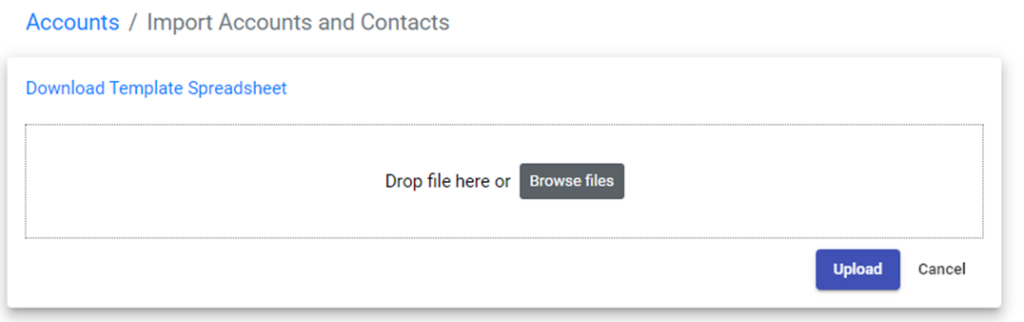
Return to C2CPRO, access Accounts, select Import, then drag and drop the spreadsheet, then select Upload.
Step 6 To confirm the import, access Accounts to view the list of Accounts you have imported.

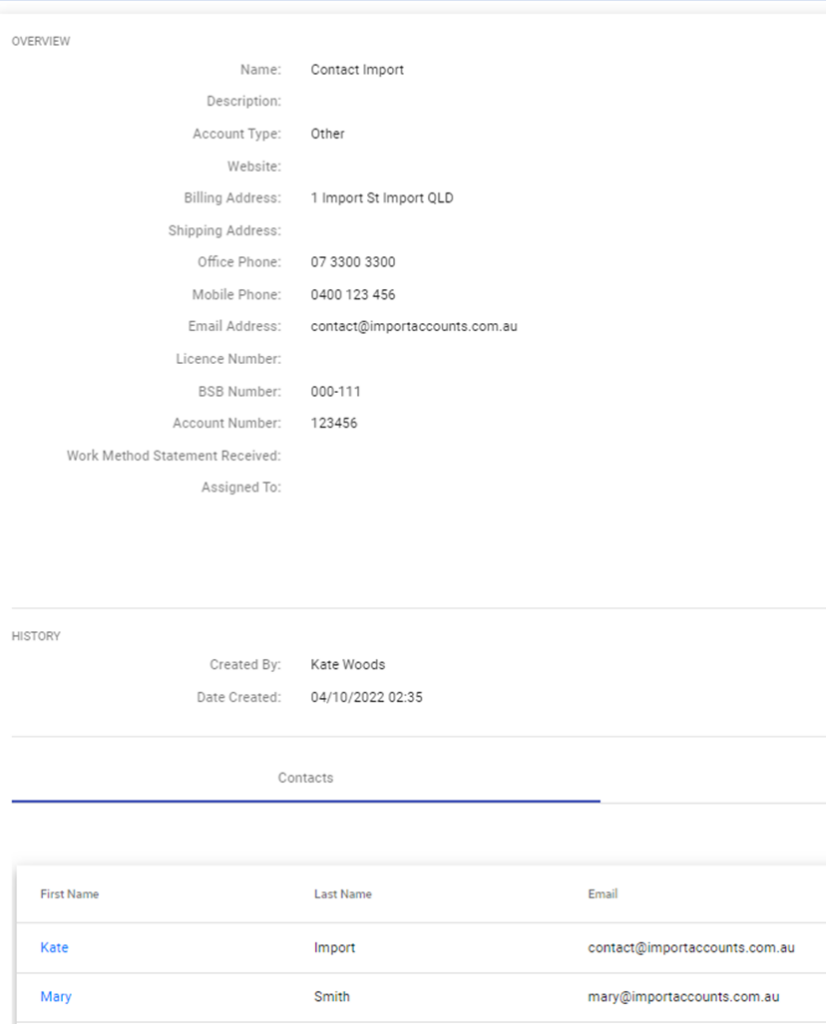
Step 7 Select an account, and you will note the details have been imported, plus the associated Contacts for that Account.
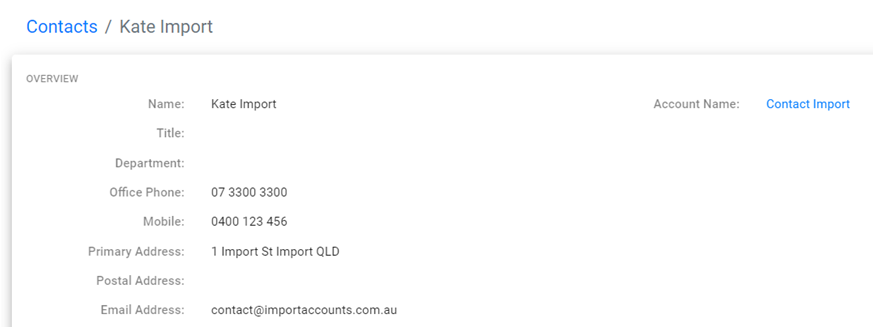
Step 8 If you select the first name of the Contact, you will note the details shown for that Contact, and also the Account they are associated to.
Step 9 You can edit the Accounts and Contacts as you need, to add further details.
Still Need Help? Please contact the team at C2CPRO via email at admin@c2cpro.com.au or book a call to schedule a dedicated time with one of the team.