Last Updated: May 2023
Permissions are applied to modules to allow control over who has access. There are different Roles with Users of C2CPRO, and there are modules that they may not need to view or have access to.
The following modules have Permission Controls.
- Estimates
- Documents
- Project Management Schedule
Estimates
When a project owner has been given User access to their Job in C2CPRO you will give them access to an Estimate so that they could potentially edit the Xplorer to explorer their project scope by changing the room sizes and levels of finishes to the rooms. You will give Permission for them to view and Edit an Estimate.
It is best practise to Duplicate the original Estimate and give Permission to the new Estimate. This is to ensure the original data entered at the first Estimate is retained.
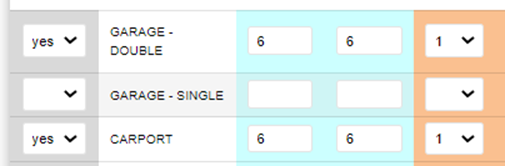
Tip! When you have duplicated the Estimate for the Project Owner to view and edit, ensure that in the Discovery, the drop down box to the left for each room is set to YES – this will make sure the room is showing in the Xplorer for the Project Owner to edit.
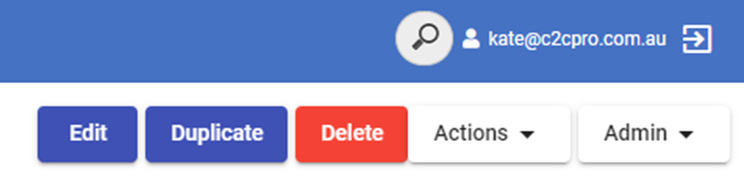
Step 1 Duplicate the Estimate.
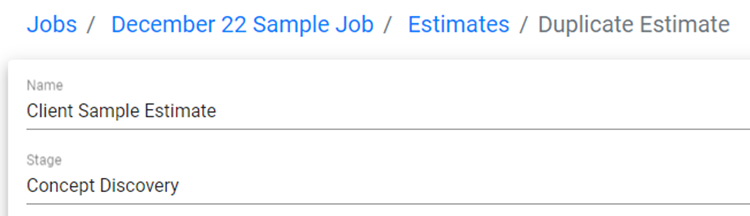
Step 2 Rename the duplicated Estimate. You could reference “Project Owner Sample”, for example, to differentiate between the two. Save.
Step 3 Select Permissions and then Edit.

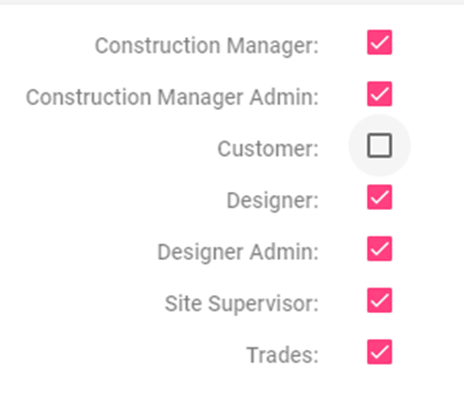
Step 4 Tick the checkbox for Customer to give access. Save.
Documents
Documents is where you can save all relevant documents and files for the project. You will note that there is a default set of folders already set up when you create a Job. These can be amended as you wish.
When you give the project owner User access, they can also view the Documents. There may be some folders you do not want the project owner to view, and this is where you control the Permissions of the folders in Documents. Permissions can only be applied to head folders, not to subfolders.
Step 1 Access Documents

Step 2 At the chosen folder, select the three dots to the right and select Permissions and then Edit.
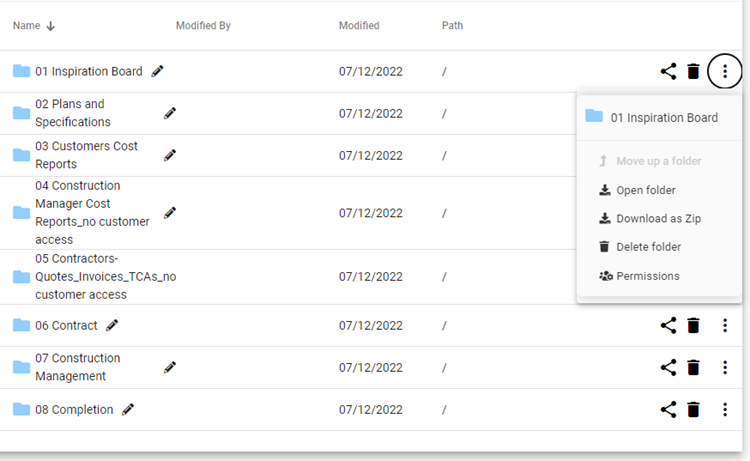
Step 3 Tick the checkbox for Customer to give access. Save.
Project Management Schedule
The Project Management Schedule displays the timeline and tasks of the project that you will set out for construction. Permissions also apply to the Project Management Schedule.
Step 1 Select Project Management Schedule.

Step 2 At the Actions dropdown menu, select Permissions and then edit.
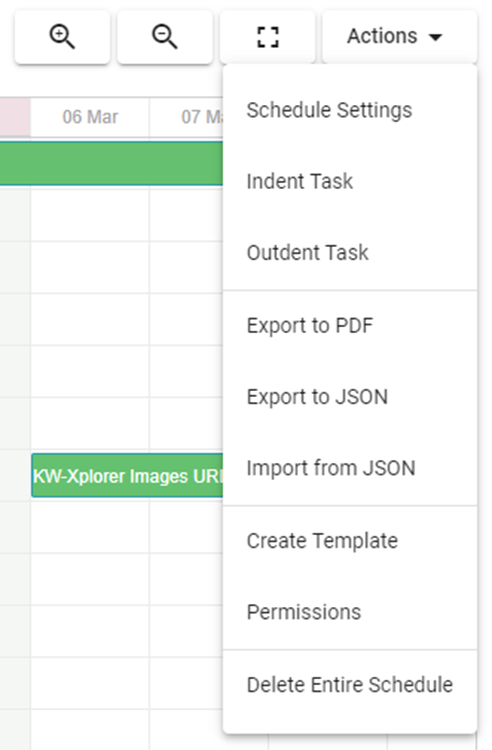
Step 3 Tick the checkbox for Customer to give access. Save.
Still Need Help? Please contact the team at C2CPRO via email at admin@c2cpro.com.au or book a call to schedule a dedicated time with one of the team.