Last Updated: May 2023
When the Project Owner (Client User) is granted permission to an Estimate (see Permissions), they can amend the Xplorer so that they can test their wishlist and budget.
In the Xplorer, the Project Owner is given limited access to they can amend the following:
- Ceiling heights
- Room sizes to New Areas and Verandahs
- Levels of Finish to the rooms in the New Areas and Verandahs
- Any items in the Extras section
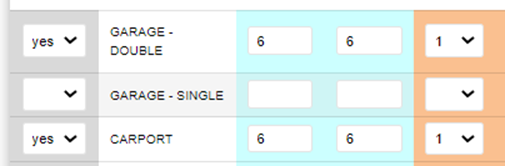
Tip! When you have duplicated the Estimate for the Project Owner to view and edit, ensure that in the Discovery, the drop down box to the left for each room is set to YES – this will make sure the room is showing in the Xplorer for the Project Owner to edit.
When the Project Owner logs in, they will view their Home Screen, which will show their job in the list.
Step 1 Select the Job.
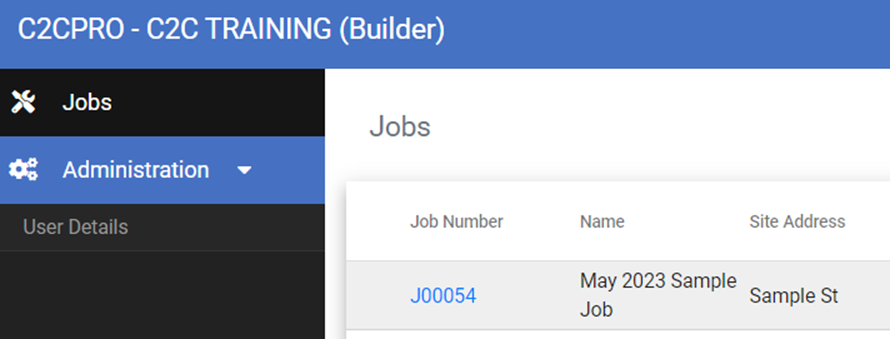
Step 2 Select Estimates.

Step 3 Select the Estimate.
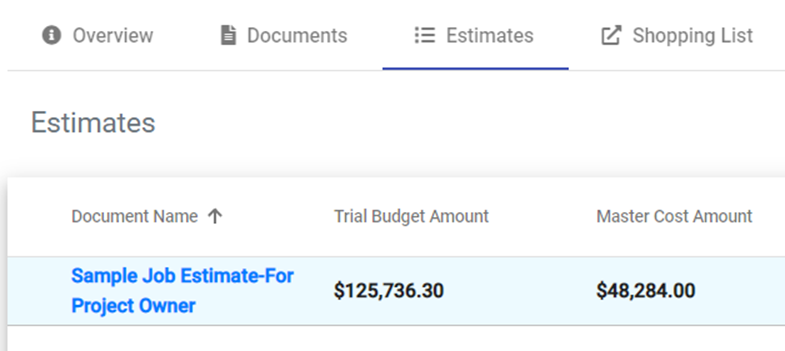
Step 4 Select Xplorer.

Step 5 The Project Owner can navigate the Xplorer by selecting the Next and Back buttons at the bottom, or by using the ribbon at the top.
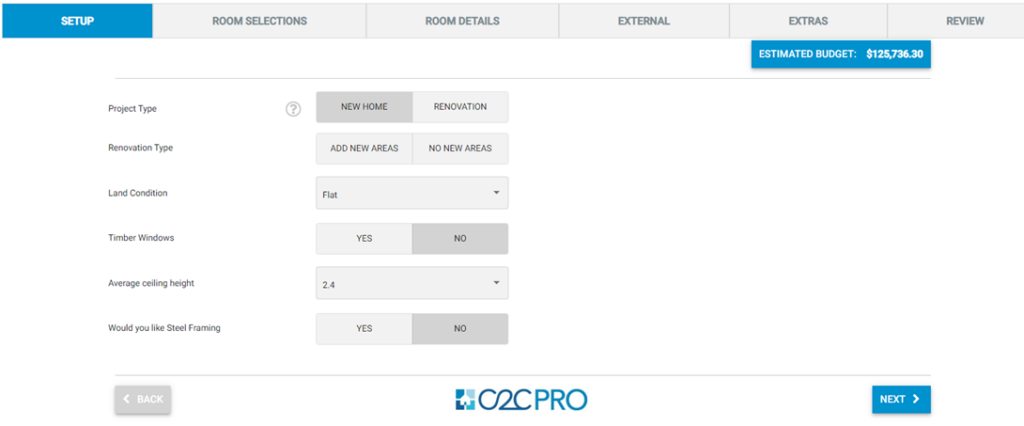
Step 6 At Setup, they can change the ceiling heights by selecting the dropdown and making the appropriate selection.
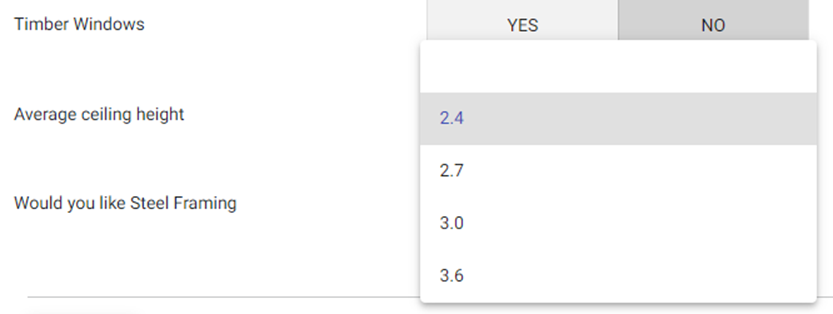
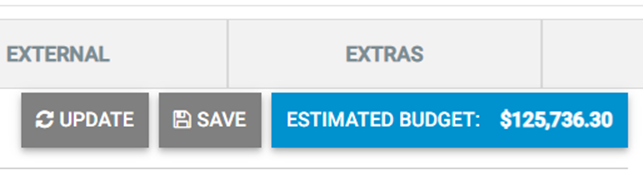
Step 7 Each time a change is made, select Update at the top right so that the Estimate Budget allowance changes based on the amendments to the Xplorer.
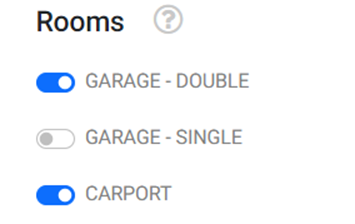
Step 8 At Room Selections tab, rooms can be added or removed as they wish, by clicking on the toggle.
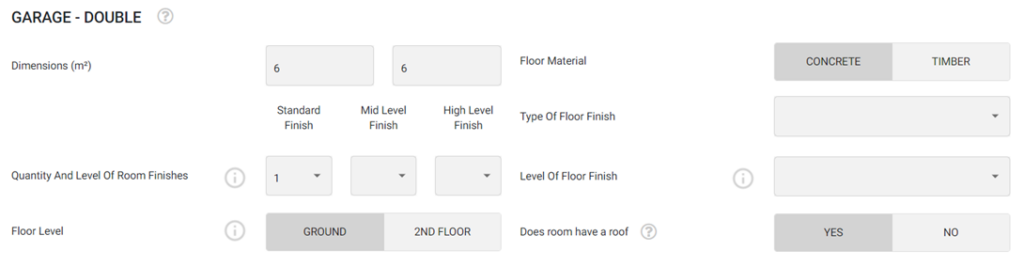
Step 9 At Room Details, this is where they can change the room sizes and the level of finish. There are helpful hints to advise along the way.
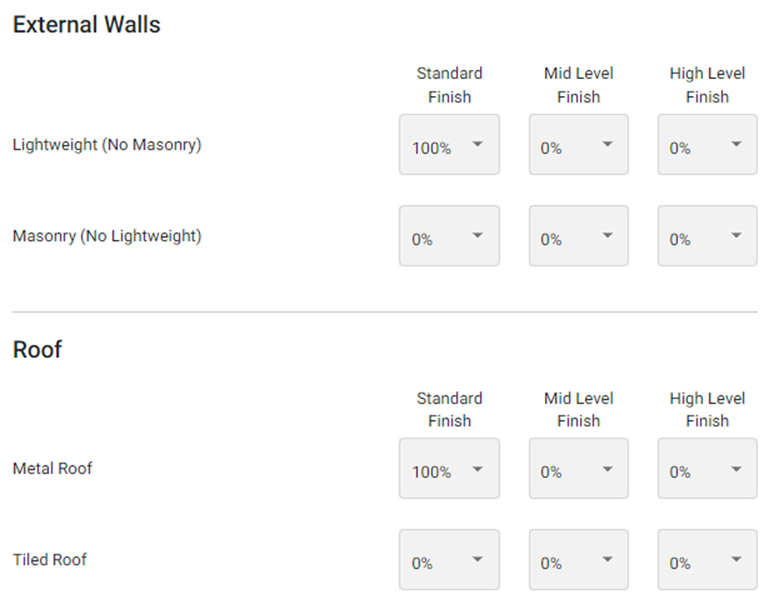
Step 10 At External, they can change the levels of finish and type of external claddings or roof styles.
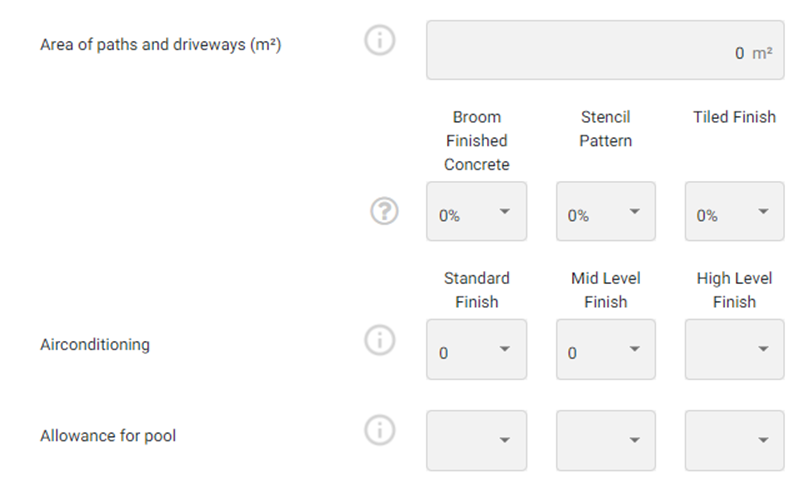
Step 11 At Extras, they can look at items like airconditioning, pools, paths, etc.
Step 12 Always remember to Update and Save.

Step 13 Review the changes.
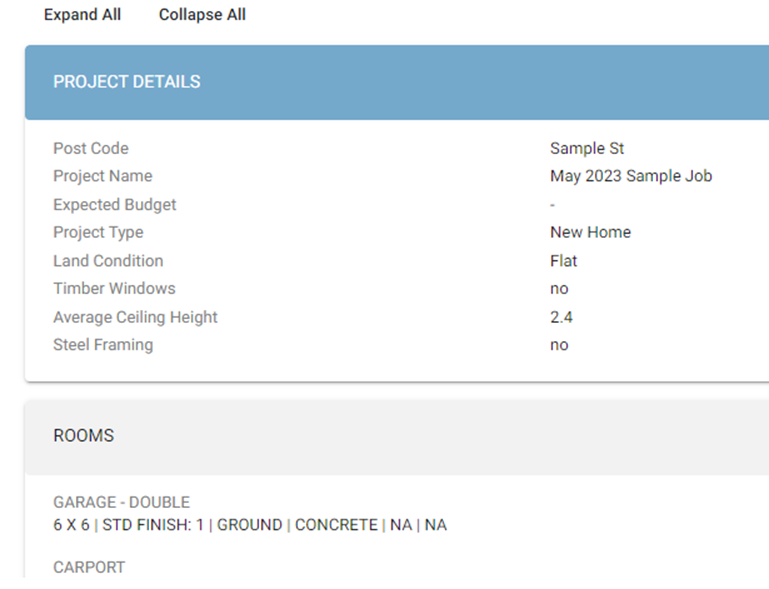
Step 14 You can now view this Estimate in your C2CPRO portal and review the changes the Project Owner has made.
Still Need Help? Please contact the team at C2CPRO via email at admin@c2cpro.com.au or book a call to schedule a dedicated time with one of the team.