Last Updated: June 2023
Quotes is where you manage the quote requests to the trades and suppliers. It is a tracking component where you can also store the quotes as they come back to you. Delivery of the quote requests are done via your third party email provider, or however you normally communicate with your trades and suppliers.
You can also access preloaded Scope of Works template documents relevant to the trade that are to be edited by yourself to suit the particular project.
Step 1 Select the Job, select Edit and change the Job Status to Tender. Save.
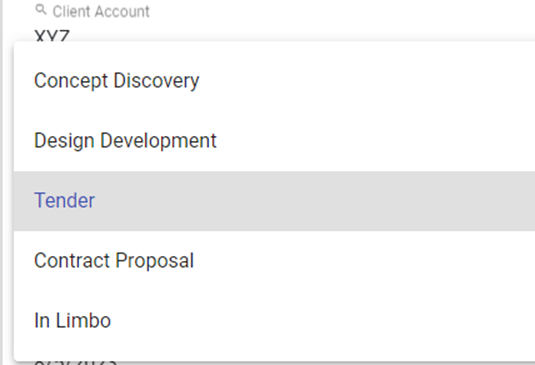
Step 2 Select Quotes at the upper ribbon.

Step 3 Select Create.
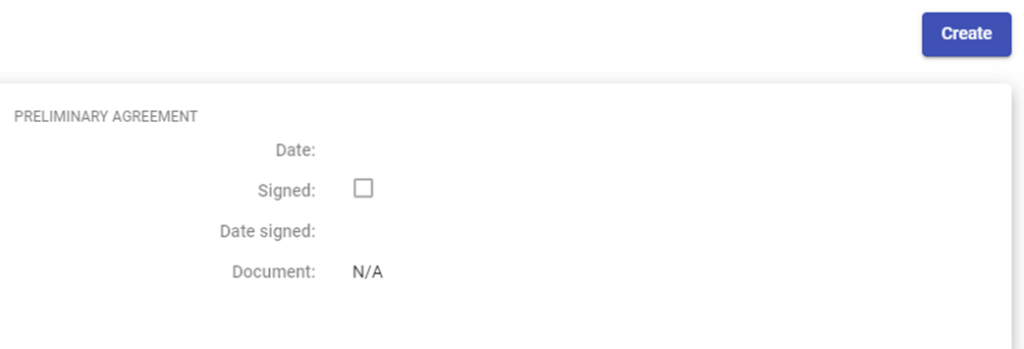
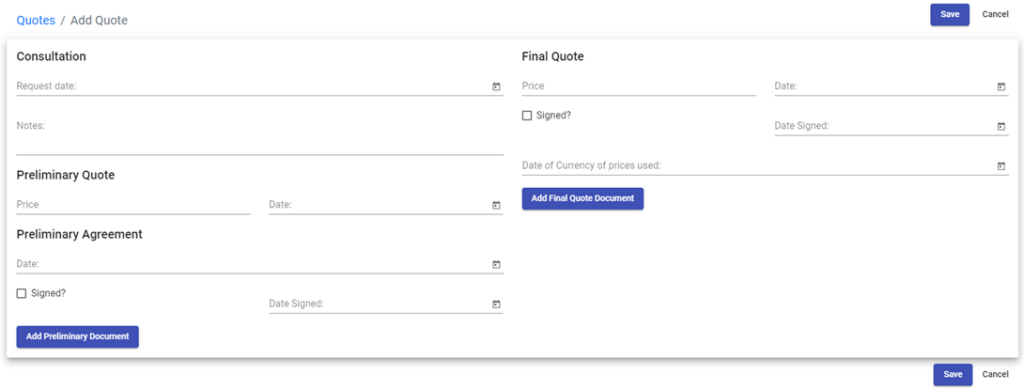
Step 4 This information is added to track the dates the quoting stage or tender stage started, what the Preliminary estimate amount was, so that it is easily tracked when finalising the Quote. At this stage, add the Consultation Request date, any notes, the Preliminary Quote amount and the date, and if a Preliminary Agreement (Pre-Contract) was used, add the details, and upload the document. The Final Quote information can be added once the Final Quote has been prepared. Save.
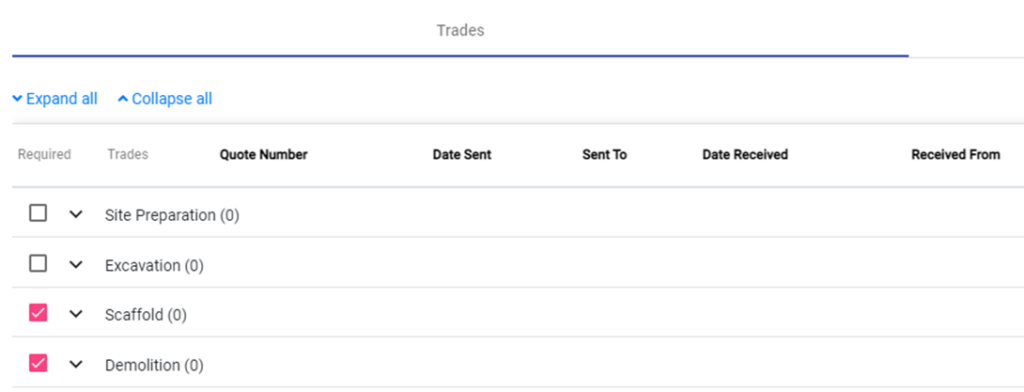
Step 5 Now a list of Trades and Suppliers has been populated. Use the checkboxes to indicate the trades and suppliers that you will need quotes from.
Step 6 Using Concrete as the example, open Concrete and select Add Concrete Item.

Step 7 This is where the details of the quote are stored, from the time a quote was requested, to who it was requested, and when the quote has been received, you add the details here, too. To start, add the Date Sent, and then at Sent To, select from the Account list or create a new one as you need. Save
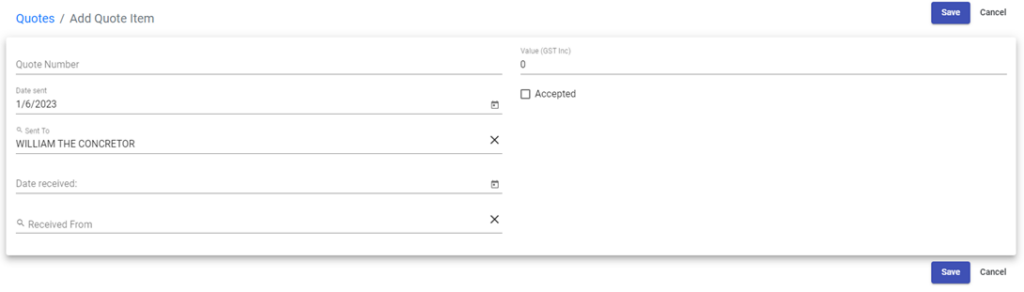
Step 8 Back at the quote list, you will see that there is a (1) beside Concrete, indicating that 1 trade or supplier has been selected. You can add multiple trades or suppliers to this line.

Step 9 To create a Scope of Works using the templates C2CPRO has provided, select Generate SOW Template, and a MS Word document will download, where you can edit as required to suit the project.

Step 10 Save the file as a PDF and add the document to the Quote tracker by accessing the item at the magnifying glass, select Edit, and then add the document.

Step 11 Select Add Document, drag or drop or browse to add the document.
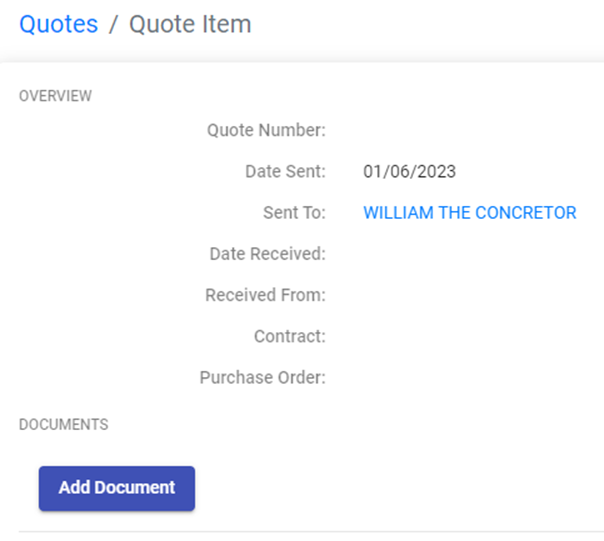
Step 12 Email the trade or supplier your quote request, along with the Scope of Works if you choose to use it.
Step 13 When you receive the quote from the trade or supplier, access the line item to edit add the details of the quote. Save.
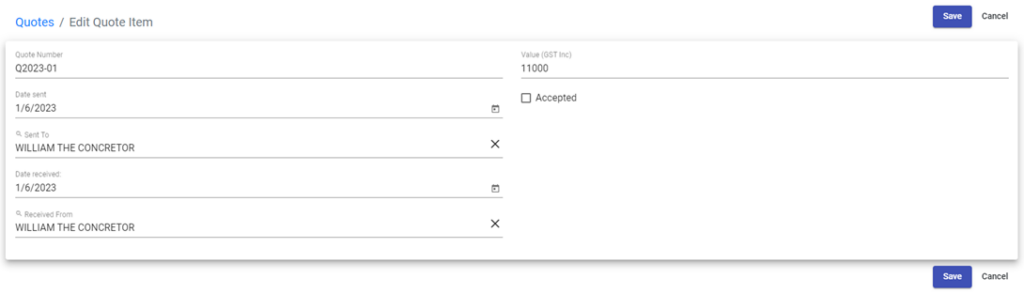
Step 14 Back at the list you can see the details of the trade and quote.

NOTE: Quotes module purpose is to provide a visual tracking tool for the quotes for the project. There is no feature for communication to trades and suppliers from the Quotes module.
Still Need Help? Please contact the team at C2CPRO via email at admin@c2cpro.com.au or book a call to schedule a dedicated time with one of the team.