Last Updated: August 2023
Trade Contract Agreement is the agreement between the trade and the builder on behalf of the project.
The most important part of this document is where it states that the payments of the trade’s invoices will come from the Joint Security Account and not from the builder’s own account. It is paramount that you use this document as the formalisation of engaging a trade prior to works being carried out on site, so when scheduling the project and organising your trades, this is the first thing you will do.
Step 1 Select the Job, select Edit and change the Job Status to Contract Won. Save.
Step 2 Select Contracts at the upper ribbon.

Step 3 Select Create.
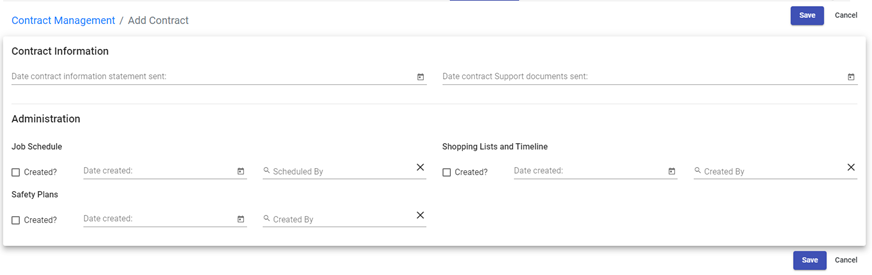
This information is to track the administration behind setting up the contract process. Enter the details. Save.
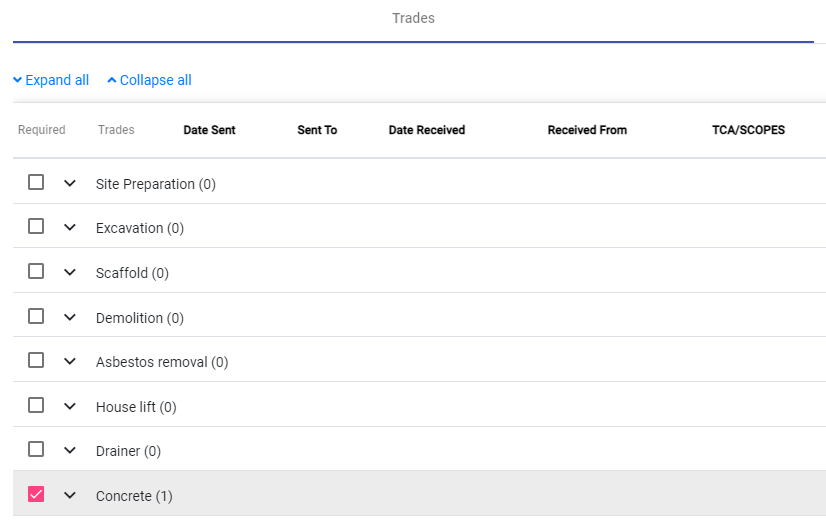
Step 4 You will note the summary sheet will show a list of the trades and suppliers.
When you have used Quotes and Accepted a Quote, this will trigger the TCA to be able to be accessed from Contracts for that trade or supplier. In the example at Concrete, you can see the number (1) – this is indicating where the Quote is now accepted and linked to the Trade Contract Agreement.
Alternatively, you can manually create a TCA by selecting Add ‘trade’ item and adding the details from your list of Accounts.

Step 5 Click on the Trade dropdown, select Generate TCA Template, and a Word document will download so that it can be edited as you choose, and sent directly to the trade so they can complete and sign the document.

You will note that the details of the Trade are shown on the document. This data is prepopulated from the information added at Accounts. As you go through the TCA, the insurance details of the trade are also provided, so it is important to add these details to their Account, and keep up to date, so when TCA’s are created.
Download this template to send to your trades and suppliers to retrieve their information for the Trade Contract Agreements to be entered at Accounts.
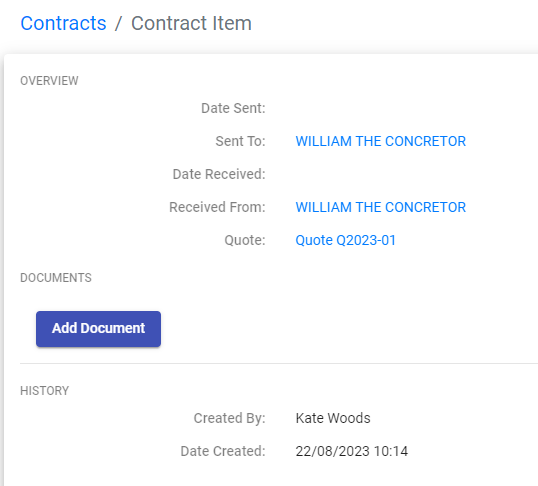
Step 6 When the trade has returned the TCA, access Contacts, select the trade and select magnifying glass, Edit, and then upload the document at Add Document.
NOTE: Contracts module purpose is to provide a visual tracking tool for the quotes for the project. There is no feature for communication to trades and suppliers from the Quotes module.
Download here
Still Need Help? Please contact the team at C2CPRO via email at admin@c2cpro.com.au or book a call to schedule a dedicated time with one of the team.